Blurry programs
Some programs look soft on a high-resolution screen. The HiDPI Launcher, in the Applications menu under Accessories, makes them sharp and remembers how.
Where to find it
The launcher is in the menu at the top left of the screen:
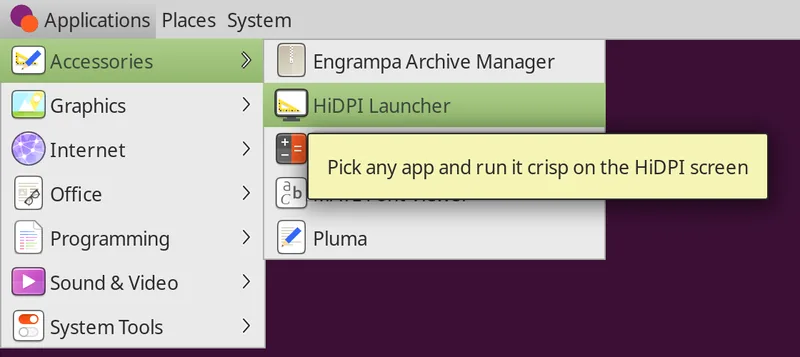
It is installed with the desktop; there is nothing to add or switch on. From a terminal, the same thing opens
with hidpi-menu.
Use it when a program looks soft on a high-resolution screen. You choose the program from a list, the launcher starts it sharp and asks whether it worked, and from then on the program starts that way from its usual place in the menu. The steps follow; why programs are blurry and how the launcher fixes them comes after.
Fix a program
Open HiDPI Launcher
Choose Applications, Accessories, HiDPI Launcher. A list of the installed programs appears in the middle of the screen.
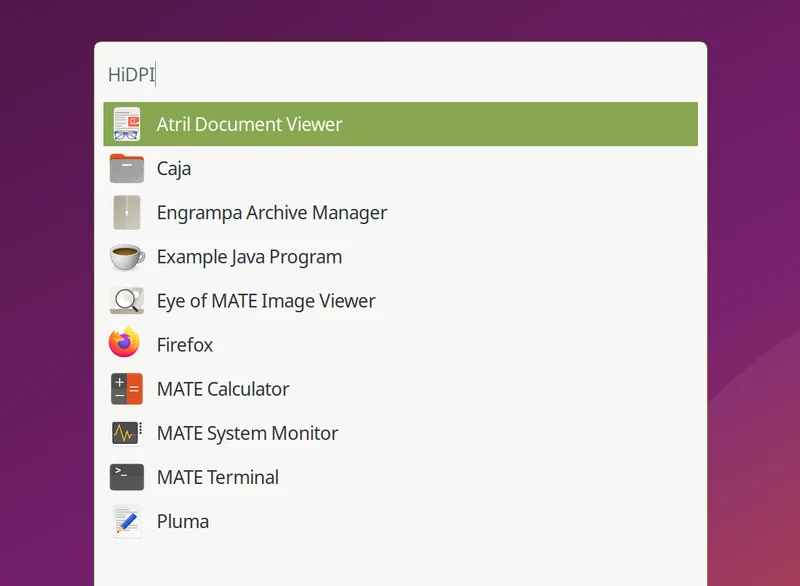
What opens after choosing HiDPI Launcher from the menu: the list of installed programs. Type to narrow it. Choose the program
Type a few letters of its name and press Enter. If the program is running, the launcher asks to close it first: a second copy of most programs only wakes the first one, which would still be the soft one.
Look at it, and answer
The program starts as a normal Wayland window and a question appears: "Is it sharp now?" If it is, choose Yes, keep it. If not, choose No, try another way: the launcher closes the program, starts it in a window of its own and asks again.
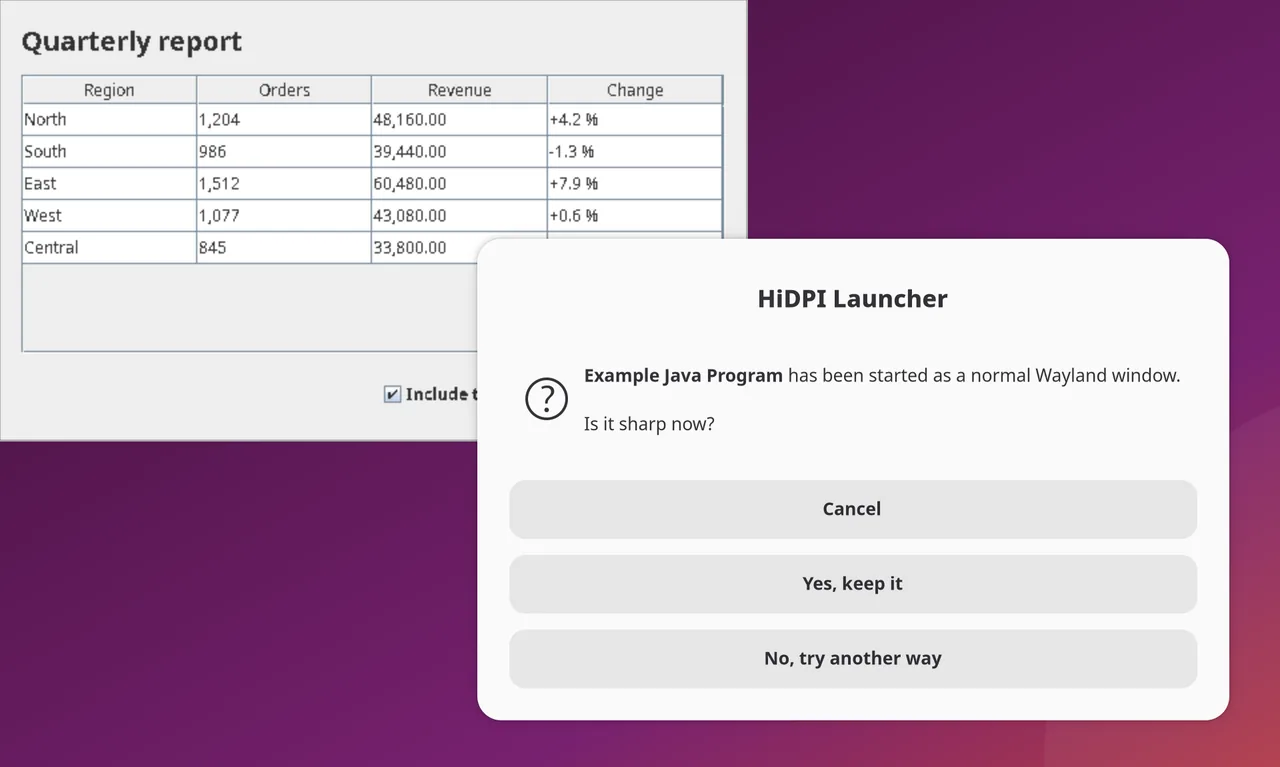
The first try. This Java program cannot use Wayland and is still soft, so the answer here is No, try another way. Start it from the menu as usual
After Yes, keep it, the program's own entry in the Applications menu starts it the sharp way from then on, and so does its start at login if it has one. There is no second entry to remember.
If neither way makes the program sharp, the launcher says so and changes nothing.
Undo it
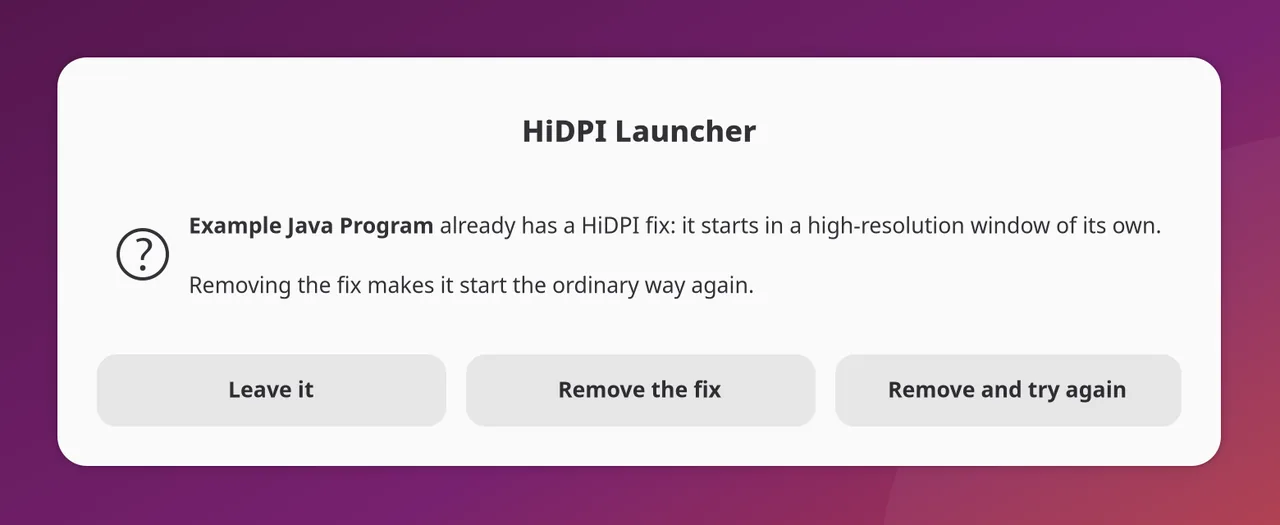
Open HiDPI Launcher and choose the program again. It says the program already has a fix and offers Remove the fix. The program then starts the ordinary way again.
What it changes
- Nothing that belongs to the program. The fix is a copy of the program's menu entry in
~/.local/share/applications, and of its start-at-login entry in~/.config/autostart, with the command going throughhidpi-run. Removing the fix puts back exactly what was there. - A fix cannot stop a program from opening. If the program fails to start the sharp way, for example after an update changed it, it is started the ordinary way instead and a notification says so.
- The fix is per user and needs no administrator rights.
- If an update changes the command that starts the program, remove the fix and keep it again.
Why some programs are blurry
Programs written for Wayland draw themselves at the screen's real resolution, at any scale. A program that talks X11 instead runs through XWayland, which has no scaling of its own: the program draws at scale 1 and the compositor enlarges the finished picture. At any scale above 1 it looks soft, and no setting inside the program changes that.
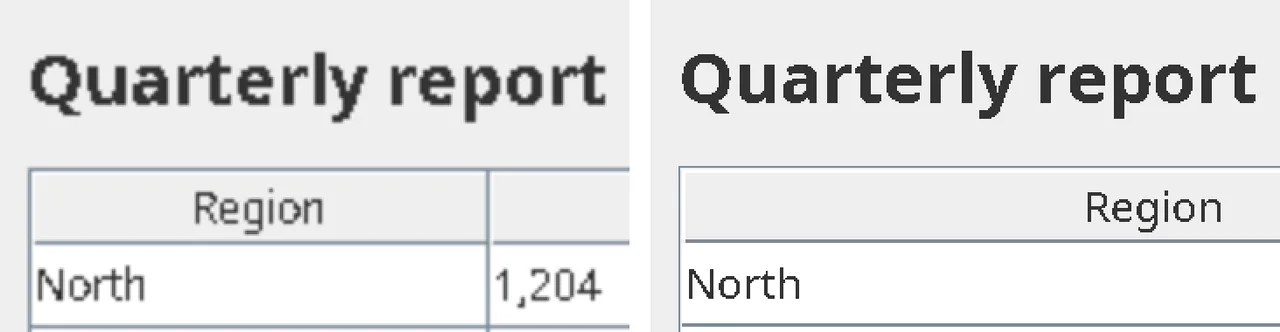
Two kinds of program end up there:
- Programs that only know X11. Java (Swing) programs are the common case, with older GTK 2 and Qt 4 programs.
- Programs that could use Wayland but start on X11 anyway. Usually a program that brings its own copy of a toolkit: it switches itself to X11 when it starts, whatever the session says, or its toolkit is disconnected by the compositor when it tries Wayland.
Each kind needs a different answer, so the launcher has two, and works out with you which one suits the program.
Two ways to run a program sharp
As a normal Wayland window
For the second kind. The launcher tells the toolkits to use Wayland and nothing else, and loads a small library into the program that does two things: it ignores the program's own switch to X11, and it keeps the window size limits the program sends valid at every step, which is what gets some bundled toolkits disconnected. The program then draws at the screen's resolution like any Wayland program. Nothing sets it apart from other windows, and a program that lives in the notification area keeps its icon there.
In a high-resolution window of its own
For the first kind, which cannot use Wayland at all. The launcher starts the program in an X server of its own, shown in one window at the screen's real resolution, and has GTK, Qt and Java draw at double size. The program is drawn with real detail instead of being enlarged. The window has the usual title bar and the panel shows the program's own name and icon. Text copies and pastes between the program and the rest of the desktop.
The launcher tries the Wayland window first, because when it works the program behaves like every other. If the program is still soft, it tries the window of its own.
From a terminal
The menu entry sits on a few commands. hidpi-run runs a program once, either way:
hidpi-run program-name
hidpi-run --native program-name
hidpi-run -- java -jar program.jar
The first form uses a window of its own, --native a Wayland window. Give the name of an installed
program, or a whole command after --. A window of its own takes all the room the screen has; to
choose its size, in desktop pixels:
hidpi-run -g 1400x900 program-namehidpi-fix is what the HiDPI Launcher hands the chosen program to. It can also be used
directly:
hidpi-fix program-name
hidpi-fix --keep native program-name
hidpi-fix --keep window program-name
hidpi-fix --list
hidpi-fix --remove program-name
With only a name it asks the questions described above. --keep keeps a way without asking,
--list shows the programs that have a fix, and --remove takes one away.
To leave the program's own menu entry alone and add a second one, named after the program with "(HiDPI)" at the end, which runs it in a window of its own:
hidpi-run -c program-name
hidpi-desktop --remove program-name
Good to know
- Programs that support Wayland and use it do not need the launcher. They are sharp already.
- In a window of its own, the program's main window always fills the outer window, so the two move as one. A program that draws its own title bar keeps it, below the window's title bar.
- In a window of its own, copy and paste carries text. Pictures and files are not carried across.
- A window of its own draws at double size, which suits a screen set to scale 2.
The long-term fix
The launcher makes programs sharp today. The complete fix lies in the software underneath, in two places.
XWayland that draws at the screen's resolution
For programs that only know X11, the answer is an XWayland that lets them draw at the output's scale, so the compositor has nothing to enlarge. That takes support in Xwayland and in the compositor together. It has been proposed to the X server project and is not part of a released Xwayland. MATE Wayland Desktop takes Xwayland from Ubuntu and uses the labwc compositor; when both support it, every X11 program is sharp with no launcher, and the window of its own is no longer needed.
Programs that use Wayland when it is there
For the second kind, the fix belongs in each program: start on Wayland in a Wayland session, and ship the Wayland part of the toolkit it brings along. The window size limits belong in the toolkit, which should never send a minimum above the maximum. As programs update their toolkits, fewer need the launcher's help.
What this project does meanwhile
The launcher stays small and separate: four shell scripts and two small libraries in the
session/hidpi directory of the
source on GitHub, with no change to Xwayland,
to labwc or to any program. When the fixes above arrive, a kept fix is removed the same way it was made.
Version 26.04 is available. Download